
Book and cancel events
For gym members. Where your gym offers it, you can book classes and other events in the app. Your gym chooses what they are called, so you may see Classes, Sessions, Courses, Workshops or Events. This guide says events.
Find an event
- Open your gym's home screen and select the events entry under Bookings, for example Classes.
- Use the day strip to pick a day. The arrows move a week at a time; days with events have a dot.
- Review the list: each event shows its time, length, coach, room and how many spots are left.
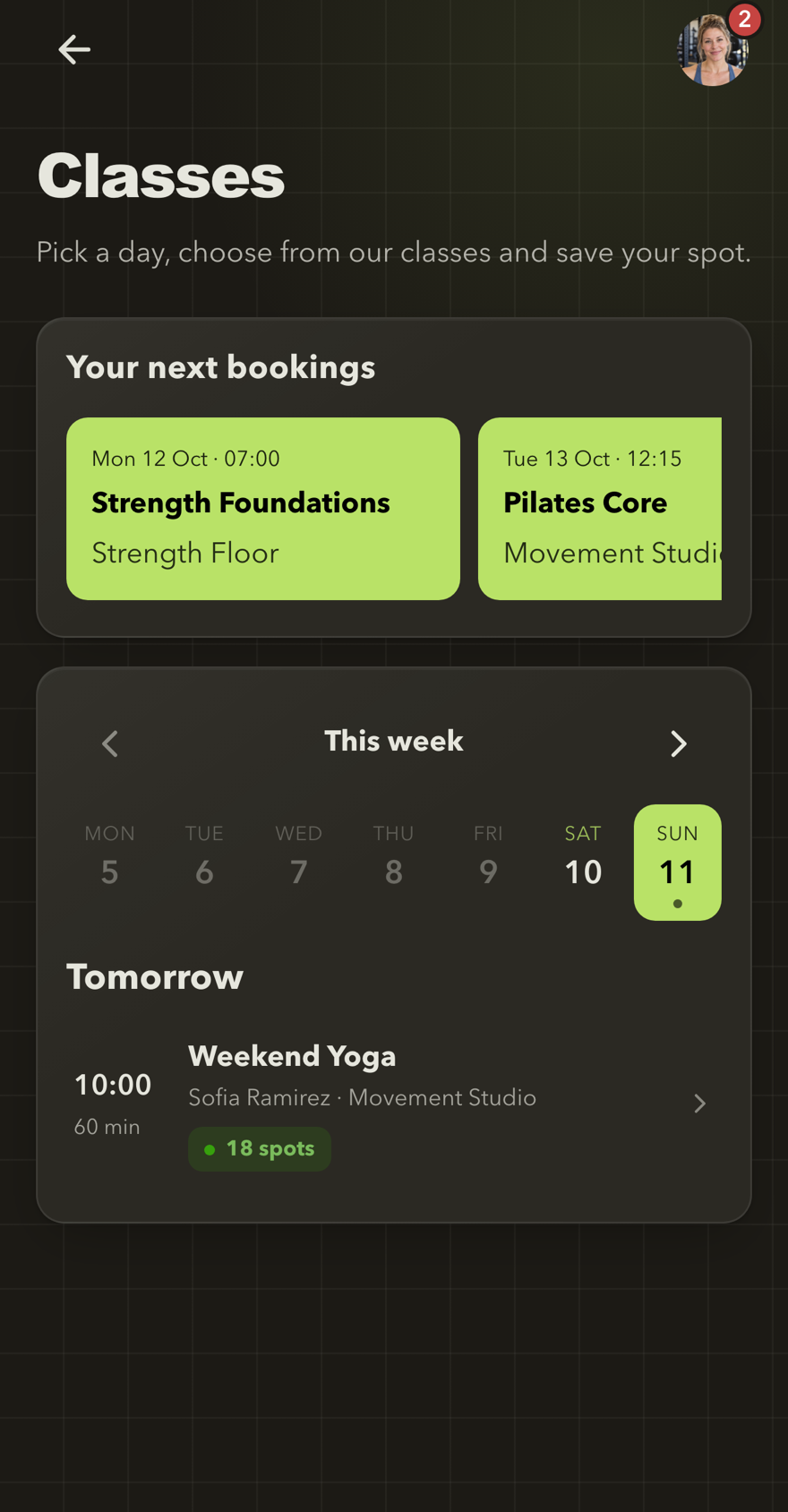
Pick a day and an event
Your next bookings are at the top. Choose a day to see its events with time, coach, room and free spots.
Your next bookings at the top of the page shows the events you have booked.
You can book from the day your gym opens bookings until the event starts. Days further ahead show what is planned with Booking opens closer to the date.
Book a place
- Select an event to open its details: date and time, coach, room, spots left and a description.
- Read the cancellation rule shown below the button.
- Select the booking button. It says how you will book, for example:
- Use membership · 2 of 3 left: uses a visit included in your membership.
- Book · 1 credit (9 left): uses credits from a credit pack.
- Pay CHF 20: pays by card online, where your gym offers it.
- Book · pay CHF 20 at the gym: you pay when you arrive.
- Book · free: nothing is counted or paid.
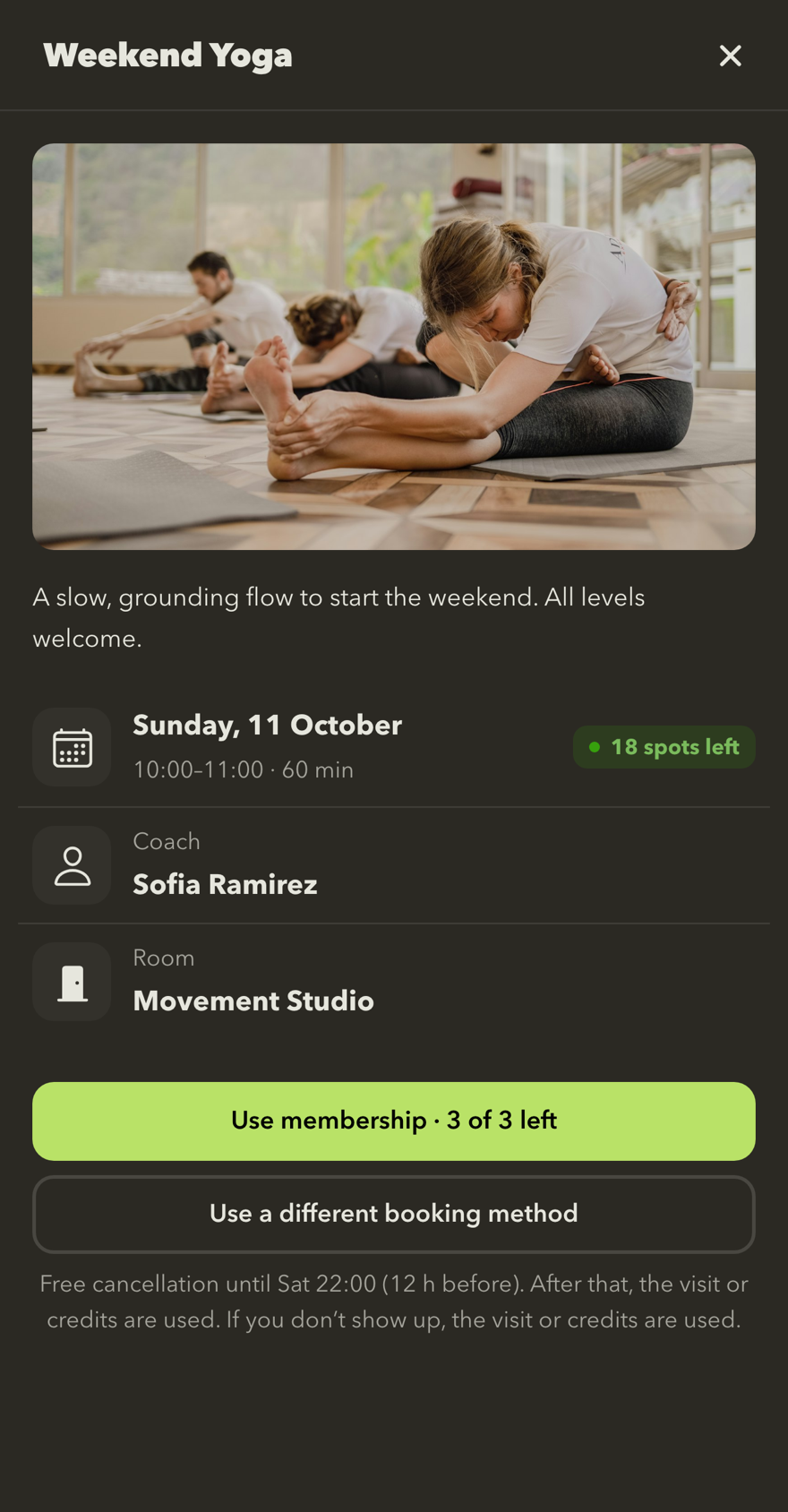
Check the details, then book
The event shows its coach, room and free spots, how you will book and the cancellation rule before you confirm.
When you see You're booked, your place is saved.
The app picks the first way you have: a membership visit, then credits, then paying online, then paying at the gym. To choose another, select Use a different booking method.
Paying online
Online payment opens a secure card payment page. Your spot is held while you pay. If you leave the page, select Continue to payment in the event. Once the payment is confirmed, the event shows You're booked. The refund rule is shown before you pay.
You cannot book an event
If the button shows How to book, the event needs something you do not have, for example a membership that includes events or enough credits. Ask your gym's team; they can explain the options.
When an event is Fully booked, there is no waiting list. Check again later or choose another date.
Cancel a booking
- Open the event from Your next bookings or the day list.
- Select Cancel booking.
- Read what you get back, then confirm with Cancel booking.
Before the free-cancellation deadline, your membership visit or credits come back. Returned credits keep their original expiry. After the deadline, or if you do not show up, the visit or credits may be used; the event shows the exact rule.
If you paid online, the event shows whether you get your money back, class credit or nothing when you cancel in time. If you pay at the gym, settle any payment with staff.
When the gym cancels an event
You get an inbox message, and a push notification if you turned on booking updates. Your visit, credits or online payment is returned.
Next: Credits and credit packs.