
Check in and plan your visit
For gym members. Select the gym you are visiting before opening its information or checking in.
Check opening hours
Open the gym's opening-hours widget or Opening Hours page, if your gym makes it available. Check the actual date for a holiday or special schedule.
The weekly schedule describes regular hours. A specific date may have different hours.
Choose a visiting time
If your gym enables Occupancy, choose the weekday to view its usual hourly pattern.
The chart describes typical activity from recorded check-ins. It is not a live headcount, a reservation, or a guarantee that space will be available when you arrive.
Check in when you arrive
- Open your gym's home screen.
- Select Check-In.
- Show the QR code to staff or the gym's configured reader.
- Keep the screen visible until the check-in is confirmed.
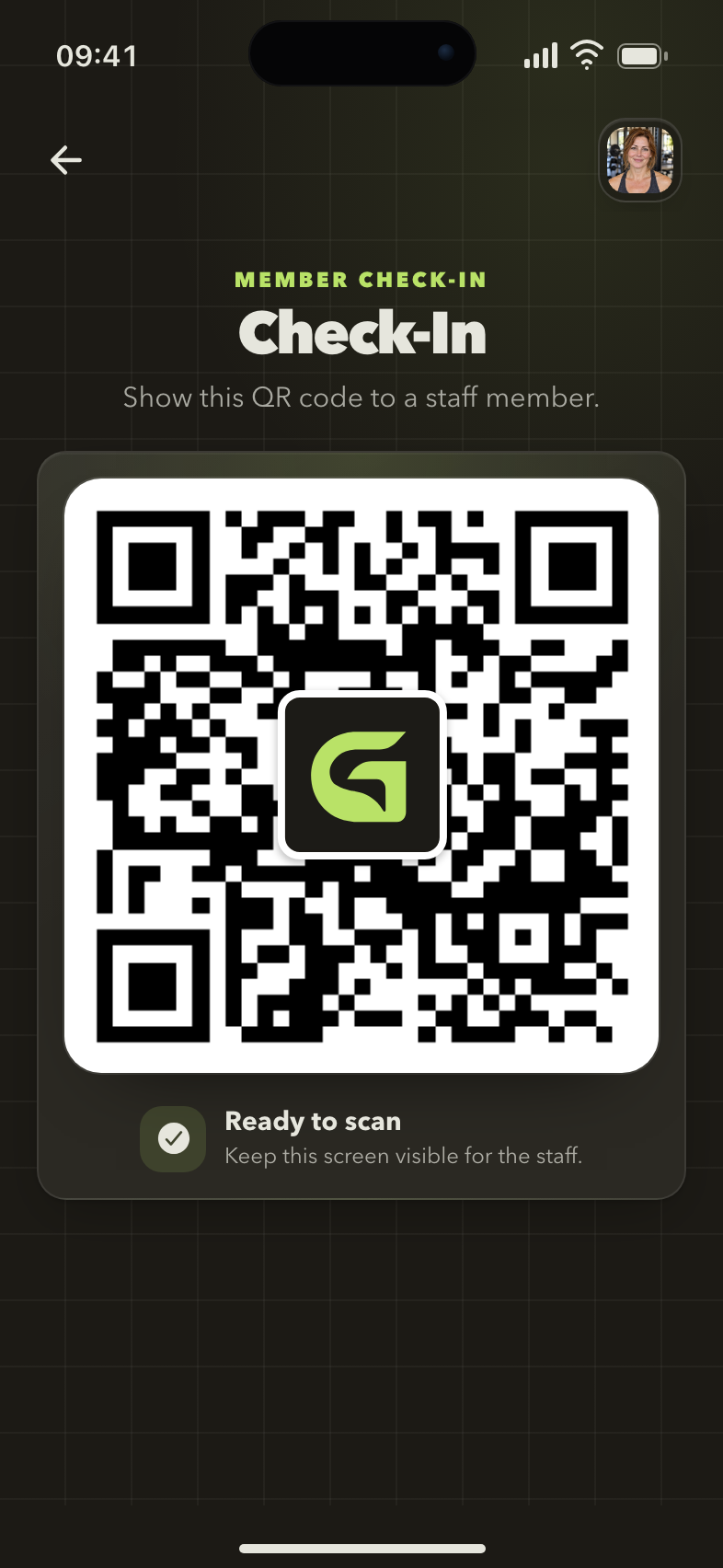
Ready for check-in
The Check-In screen provides the code staff need to record your visit.
Use Join a gym when connecting to a gym for the first time. For an ordinary visit to a connected gym, use Check-In.
No phone or a scan problem?
Ask staff to find your profile and check you in manually if appropriate.
If an app service is unavailable after arrival, ask staff to check your membership and the gym's access settings. Check-in does not itself create or renew a membership.
Next: Open your workout.