
Join your gym
For gym members and staff connecting their own account. You need a gym that uses Gymplify and a personal Gymplify account.
Connect with your QR code or join code
- Open Gymplify and sign in to your existing account, or create one if this is your first time.
- On your account home, select Join a gym.
- Show the QR code to your gym's staff, or tell them Your join code, the 4 characters below it.
- Wait while staff connect your account. The screen moves on by itself once you are connected; you can also select Check again.
- Open the gym under My gyms.
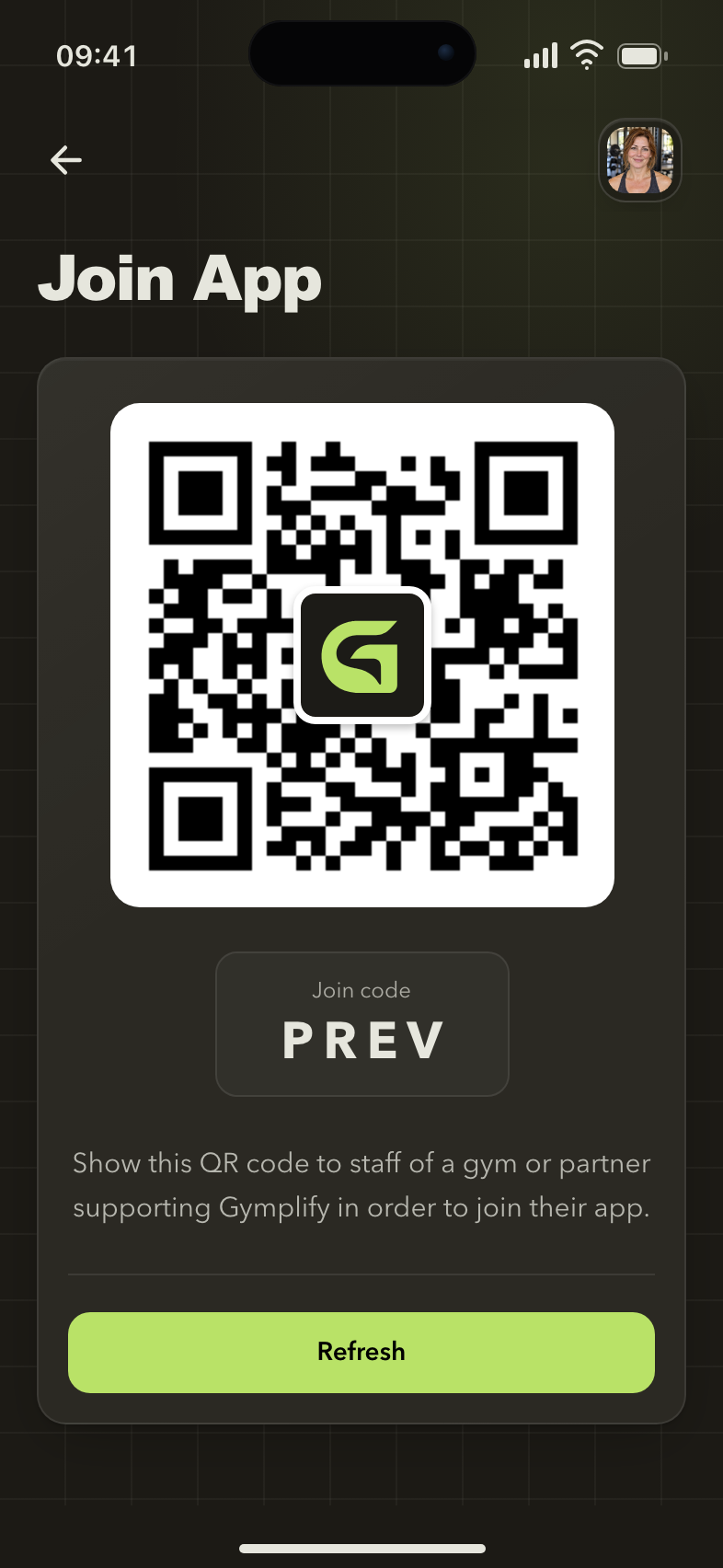
Show your join code to staff
This code connects your account to the gym. Keep the Join a gym screen open while staff complete the connection.
Your join code is valid for 24 hours and renews automatically while the screen is open. Staff type your code into their app; you never need to enter a code from the gym.
A join code connects an account; it does not buy, renew, or activate a gym membership.
In your gym's own app or web address
If your gym has its own app or its own web address, you see Connect your account instead. The app sends your gym a connection request and shows Waiting for your gym. Keep the screen open until staff accept it. Requests expire after 30 minutes and renew while the screen is open; use Send a new request if needed.
Your gym already has a profile for you
Tell staff before they add another profile. They can connect your account to the record that already holds your membership and other gym information.
Use the same account when you return. A second sign-in account can make it harder to find the correct connection.
You use more than one gym
Your account home lists every connected gym under My gyms. Choose the gym you want to visit or train with. Use Switch app in the account menu to change gyms.
Memberships and permissions are managed separately by each gym. Understand accounts and gym apps.
The gym does not appear
Check that staff completed the connection and that you are signed in to the account whose code you showed. Select Check again on Join a gym, and ask staff to check the linked account if the gym is still missing.
Do not create a new gym app to solve a missing connection.
Next: Check your membership, then plan your first visit.