

Track body metrics
For gym members. Body Metrics gives you a history of the measurements you record. Your gym must make the module available.
Add a measurement
- Open Body Metrics in your gym's app.
- Use the add-measurement control.
- Enter the measurements and date requested by the form.
- Check the values and units before saving.
Record measurements consistently so the history is useful when comparing entries.
Review a trend
Choose Weight, Body Fat, or Muscle Mass to view the corresponding chart and history.
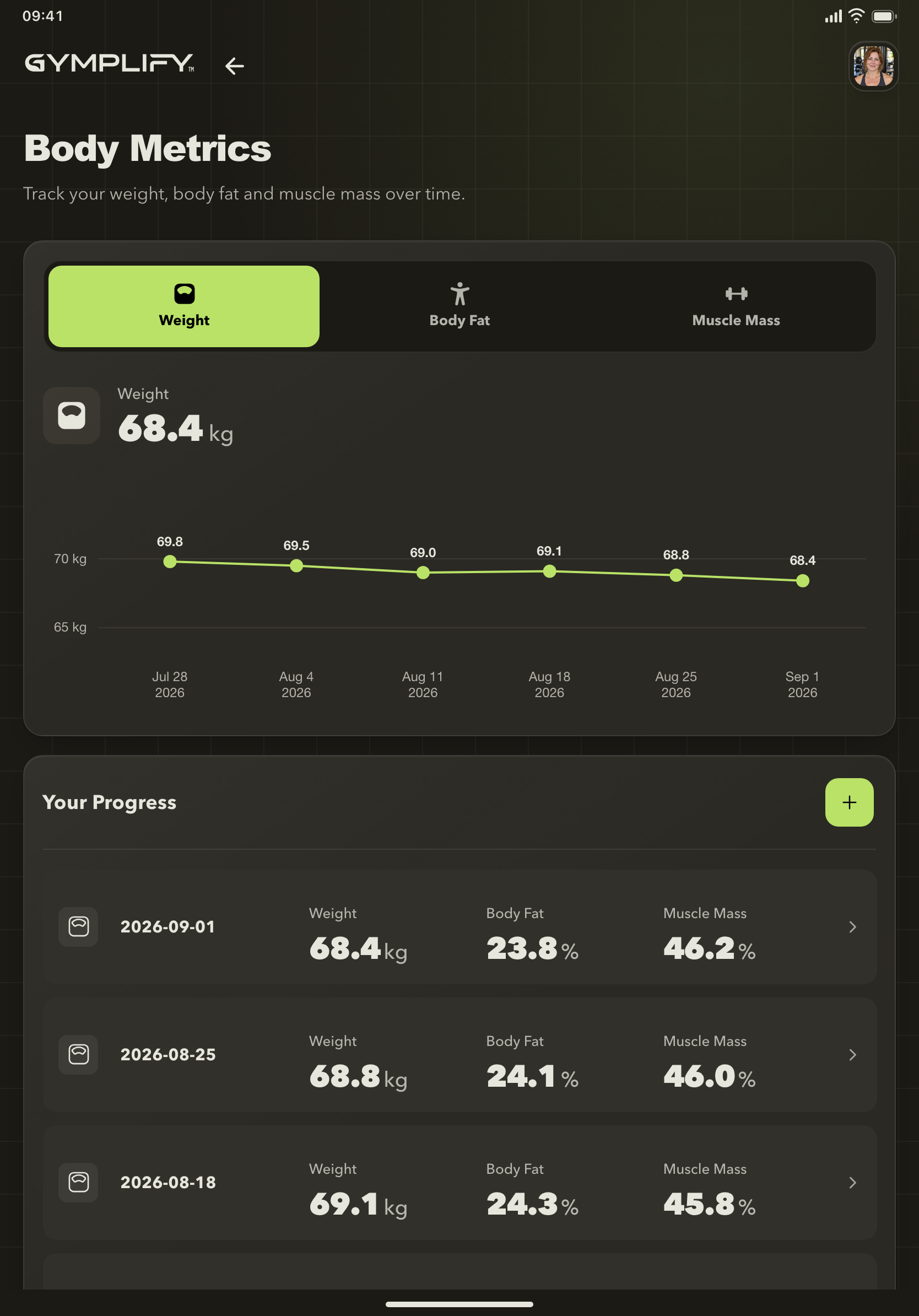
Measurements over time
Switch between measurement types and compare the chart with the recorded values in your history.
The chart visualizes recorded data. A gap may mean no measurement was entered for that period.
A value looks wrong
Compare the entry's date, value, and unit with the measurement you intended to record. Check that you are viewing the correct metric and gym.
If you cannot correct an entry with the controls available to you, contact your gym for help.
Body Metrics is missing
Your gym may have disabled the module, hidden its widget, or restricted access for inactive memberships. Ask staff to check your membership and the module settings.
For staff and trainers
Use this guide when explaining the member's measurement flow. Staff with configuration access can set up Body Metrics under App → Modules, including its widget and inactive-member visibility.