
Manage members
For staff with member-management access. Looking for your own membership? Use the member guide.
Find the right member
Open Admin Panel → All Members and select a member. Confirm the name before editing their information.
The profile brings together their overview, membership, notes, photos, workouts, and messages. The tabs and actions you see depend on your permissions and the gym's enabled modules.
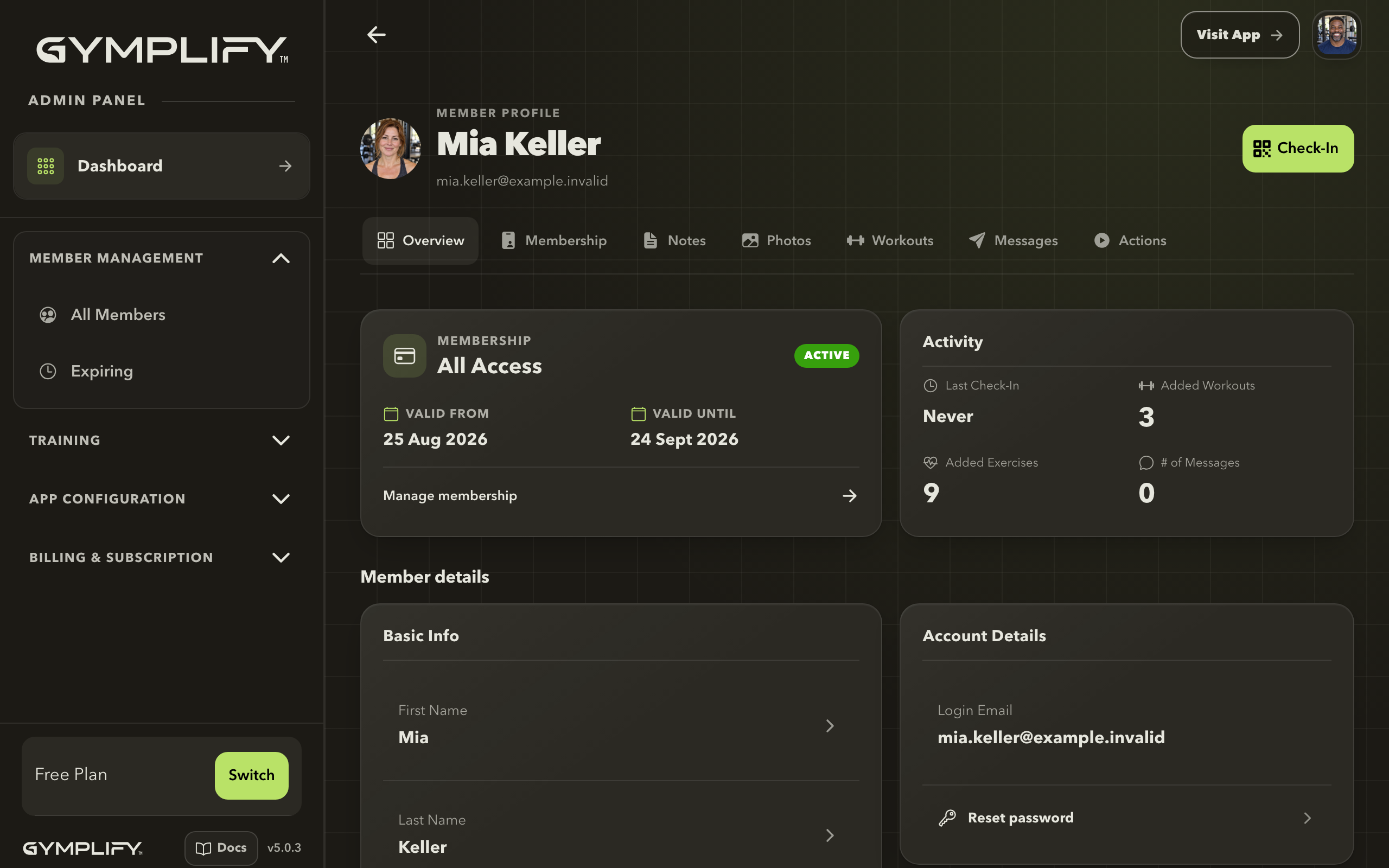
A member profile
The overview combines membership status, activity, member details, and the connection to a Gymplify account.
Add a member with an account
- Select Add member.
- Choose With QR code.
- Ask the person to open Join App in Gymplify and show their code.
- Scan it and review the person found.
- Complete the displayed flow, then open the member's profile.
If the person is already a member, use the existing profile.
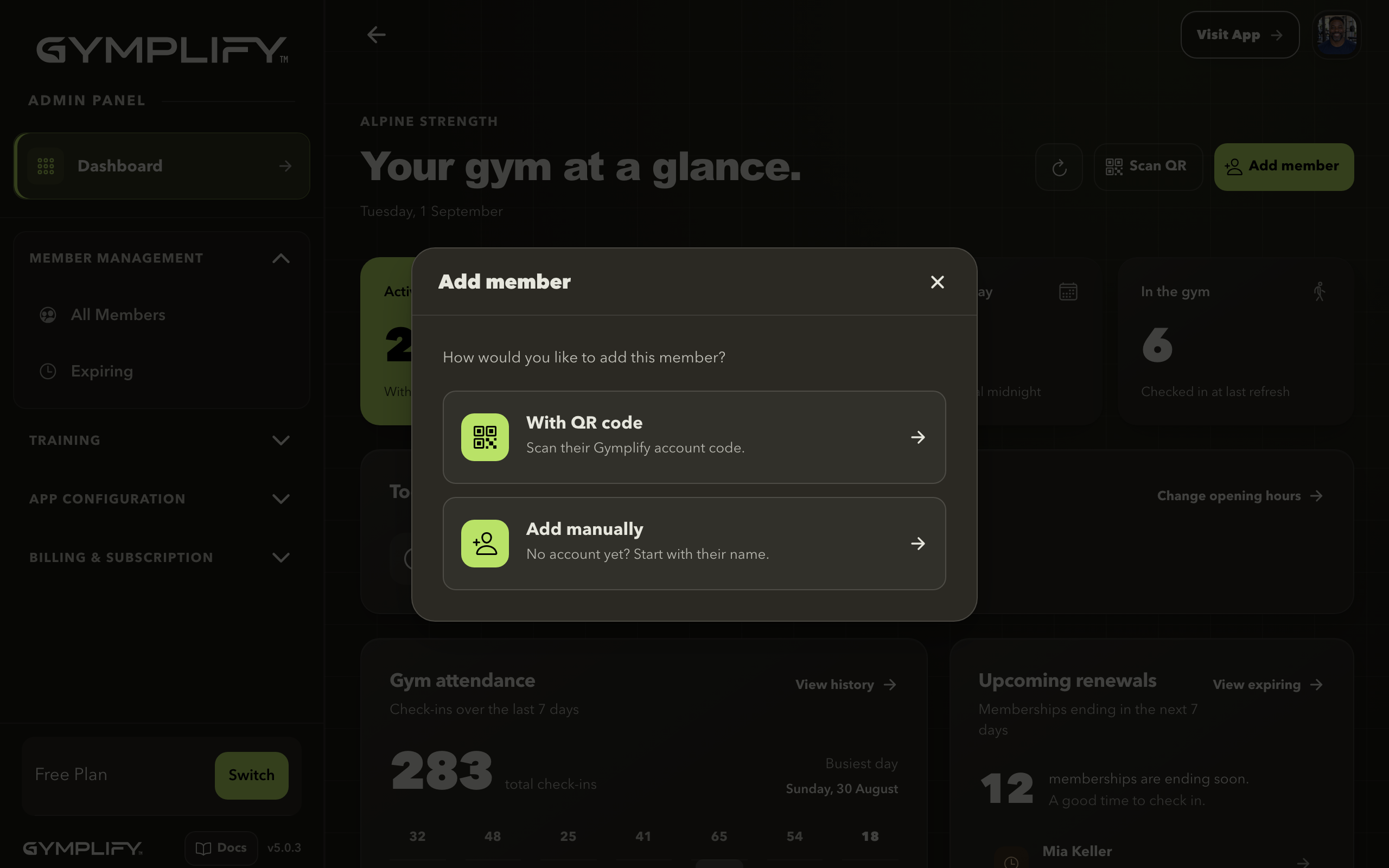
Choose how to add a member
Use the person's Gymplify QR code when they have an account, or add a profile manually when they do not.
Add a member without an account
- Select Add member → Add manually.
- Enter the requested member details and save.
- Open the new profile to add contact information and a membership.
The gym can manage this profile without the person registering immediately.
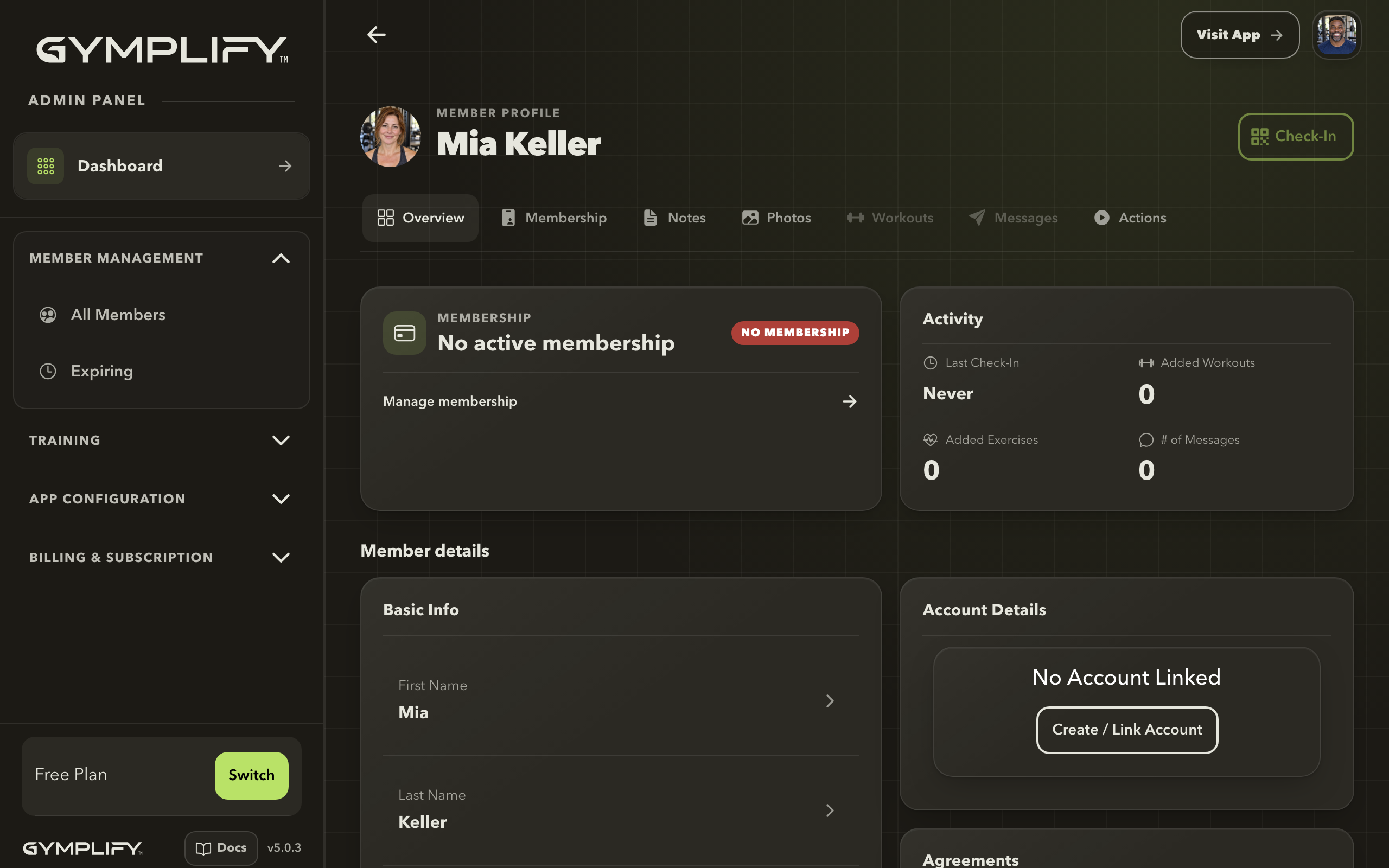
A profile without a linked account
No Account Linked means the gym has a member record, but the person has not connected a sign-in to it.
Link an account to an existing profile
When the person registers later, open their existing profile. In Account Details, use Create / Link Account and follow the prompts.
Check the account details with the person. Linking the existing record keeps the member's information together and avoids creating a second profile.
Work from the profile
- Membership: add a membership, record payment details, or manage pauses.
- Workouts: review and manage their training.
- Messages: send an in-app message or attachment.
- Notes and photos: maintain the information your team needs to support the member.
- Actions: authorized staff can manage staff access and access available account or removal actions.
What the member sees
A linked account lets the member open the gym and use the services made available to them. Their own view is different from the Admin Panel.
Adding a profile or connecting an account does not by itself create an active membership. Record the membership separately.
Next: Manage memberships.