
Manage memberships
For staff with membership-management access. This page covers memberships that your gym gives or sells to its members. For your business's software plan, see Gymplify plans and billing.
The Memberships module
Memberships is on for every new gym. If your gym sells only credit packs or free events, you can turn it off under App → Modules → Memberships.
While Memberships is off, members keep their memberships but cannot see them in the app, and your team cannot add new ones. Turn it back on at any time to show them again.
On the module page, Member app has the “No membership” notice setting. When it is set to Show, members without a membership see No membership yet on their start page, with a link to your memberships. Choose Hide if members book with credit packs instead.
Define your membership types
Open People → Memberships. Each membership type has its own page.
- Select + Membership type.
- On Details, enter the Name, a Short description that members see and an optional Internal description for staff.
- On Benefits, list what the membership includes. Members see it as a checklist.
- On Durations, add each duration members can buy, with its price.
- If you use Events, choose on the Included events tab (it uses your name for events, such as Included classes) whether the membership includes them: Not included, Unlimited, A number per week or A number per month.
- Select Save.
To stop offering a type, archive it. Members who already have it keep their access until it ends, and you can restore it at any time.
Members can compare your membership types under Memberships in the app. They cannot buy a membership in the app; staff add it.
Trial memberships
Tick Trial membership on a type's Details tab to offer it to new members only. A trial can be given to a member once, and only if they never had a membership before. Trial types show a Trial label.
Add a membership
- Open People → Members and select the member.
- Open Membership.
- Start adding a membership.
- Complete the membership type, duration or validity details, and pricing fields shown.
- Record the payment method and payment status where applicable.
- Review the details and confirm.
Check the member and validity dates before saving, particularly when an existing membership is still active.
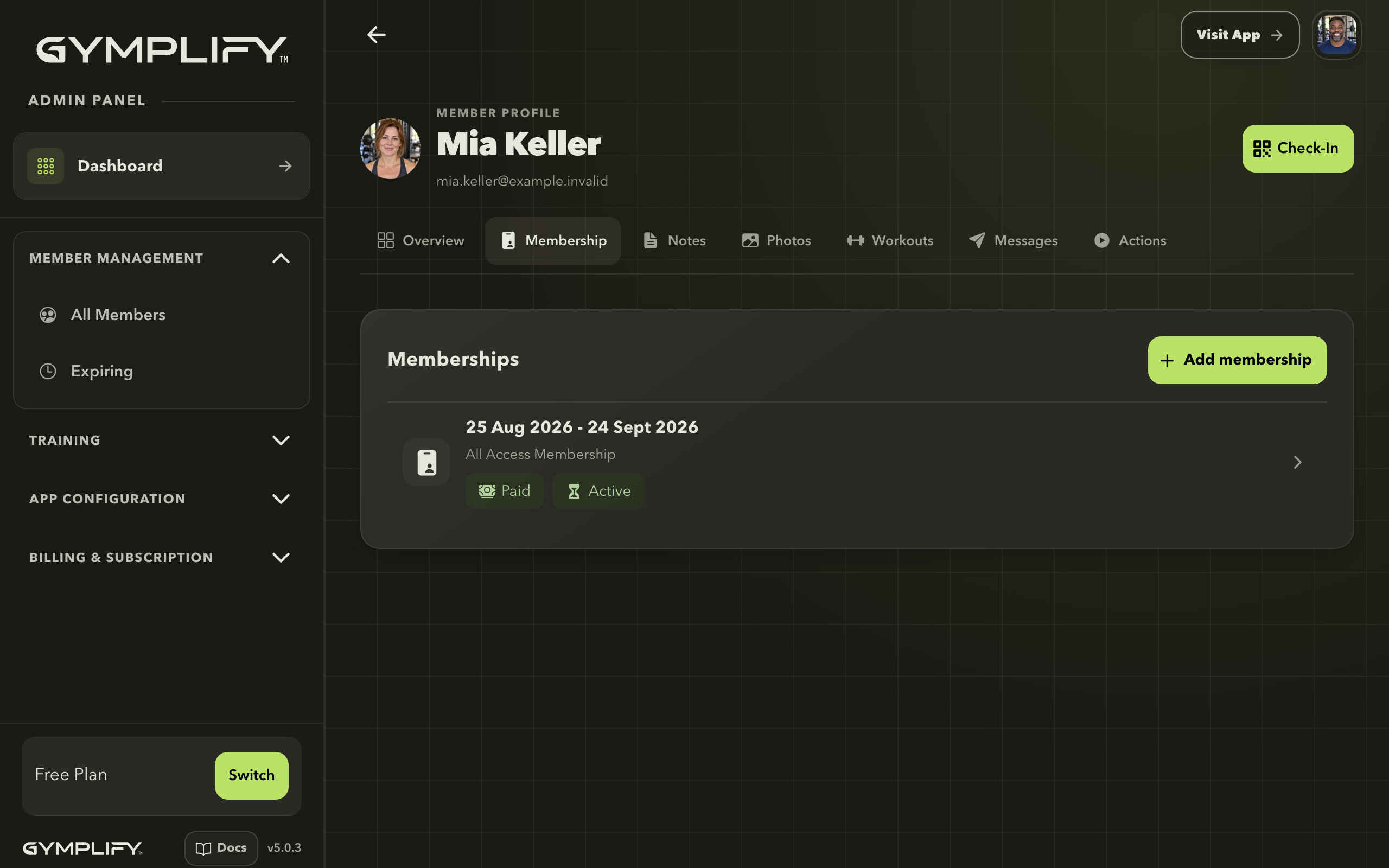
The staff membership view
Review a member's memberships, validity dates, and payment status before adding or opening a membership.
Record payment information
Membership forms store a Payment Method, Payment Status, and, where applicable, a Payment Reference. These fields record what happened through your gym's payment process.
Choosing a payment method or marking a membership as paid does not collect money from the member. Use your gym's payment process, then record the outcome in Gymplify.
Open an unpaid membership and use Mark As Paid when payment has been received.
Review details and receipts
Open a membership to see its details and receipt. In the web app, Print opens the receipt for printing. If the browser blocks the new window, allow it and try again.
Use the membership list to distinguish a current membership from an upcoming or past one.
Pause a membership
Open the membership and use the pause action when it is available. A pause can optionally extend the membership by the pause duration.
The app checks the following rules:
- A future membership cannot be paused.
- Pause periods cannot overlap.
- A pause must fit within the membership's start and end dates.
- An existing future membership can prevent extending the current one.
Review the proposed dates and any extension before confirming. If the pause action is unavailable, check the membership's settings and current state.
Help a member check their status
Members can open Your Membership to see validity and plan details, and Show History to review previous memberships. Changes and extensions go through your staff.
Share the member membership guide.
Membership and app access
Staff with configuration access can set some modules to require an active membership. A person's ability to sign in and their permission to use a particular module are separate.
If a member reports missing training or body metrics, check their membership and the relevant module settings.