
Rooms
For staff who manage rooms. Rooms are the places where your events happen. Every event takes place in a room, so the calendar can prevent double bookings.
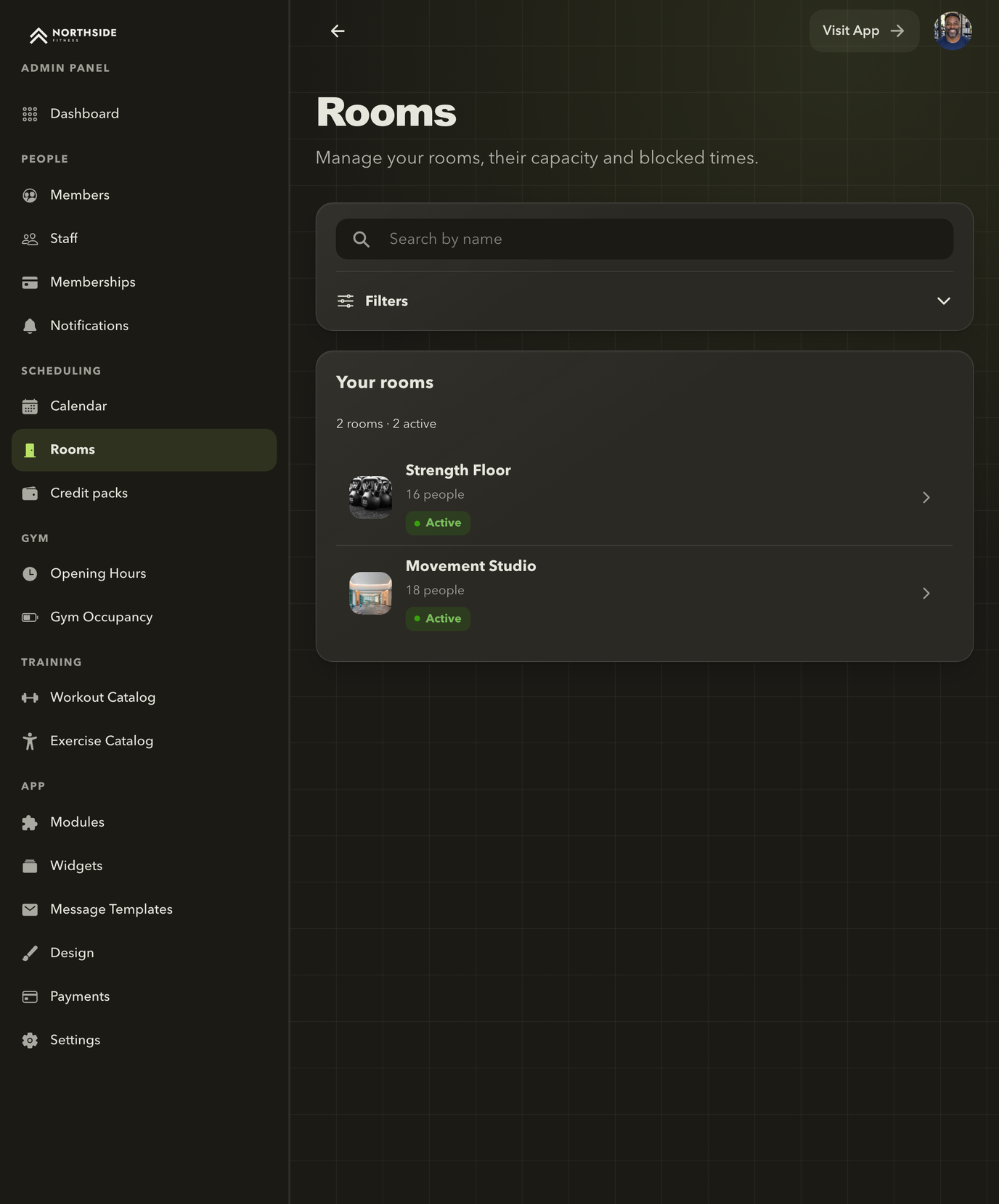
Your rooms
Each room shows its capacity and status. Open a room to edit it, set its opening hours or block time.
Rooms is available on every plan. It turns on with Events, or on its own under App → Modules.
Add a room
- Open Scheduling → Rooms and select + Room.
- On Details, add a Room image, a Name, a Description for members and the Capacity.
- Select Save room.
The capacity is a guide for an event's seats in that room. An event may offer more places, for example when people stand rather than train; the event editor then shows a warning. You can change a room's capacity at any time, even when events are already scheduled in it.
Set opening hours
- Open the room and select Edit room, then the Opening hours tab.
- Turn on Set opening hours.
- Add the hours for each Day with Opens and Closes. Use 24:00 for midnight.
- Select Save opening hours.
Events and blocked times in this room must fit these hours. When opening hours are off, the room can be scheduled at any time. These hours are separate from your gym's opening hours.
Block time
Open the room and select Block time to make it unavailable for maintenance, holidays or private use. Only staff see the reason; members see the room as unavailable. More about blocking time.
Show rooms to members
Open App → Modules → Rooms → Configure and turn on Show rooms to members. Members then see your rooms with photos, capacity and opening hours.
Members cannot book rooms in the app. Staff schedule events and block time.
Archive or delete a room
Select Archive room to stop using a room. Members no longer see it and no new events can use it. Past bookings stay in the history, and you can Restore room at any time.
Delete room works only for a room that has never been used. Otherwise, archive it.
Next: Schedule an event.