
Send messages to members
For staff. Members looking for messages from their gym should use the inbox guide.
Send a message
- Open People → Members and select the recipient.
- Open the Messages tab.
- Select New Message.
- Write the message and add any supported attachment.
- Review the recipient and content, then send.
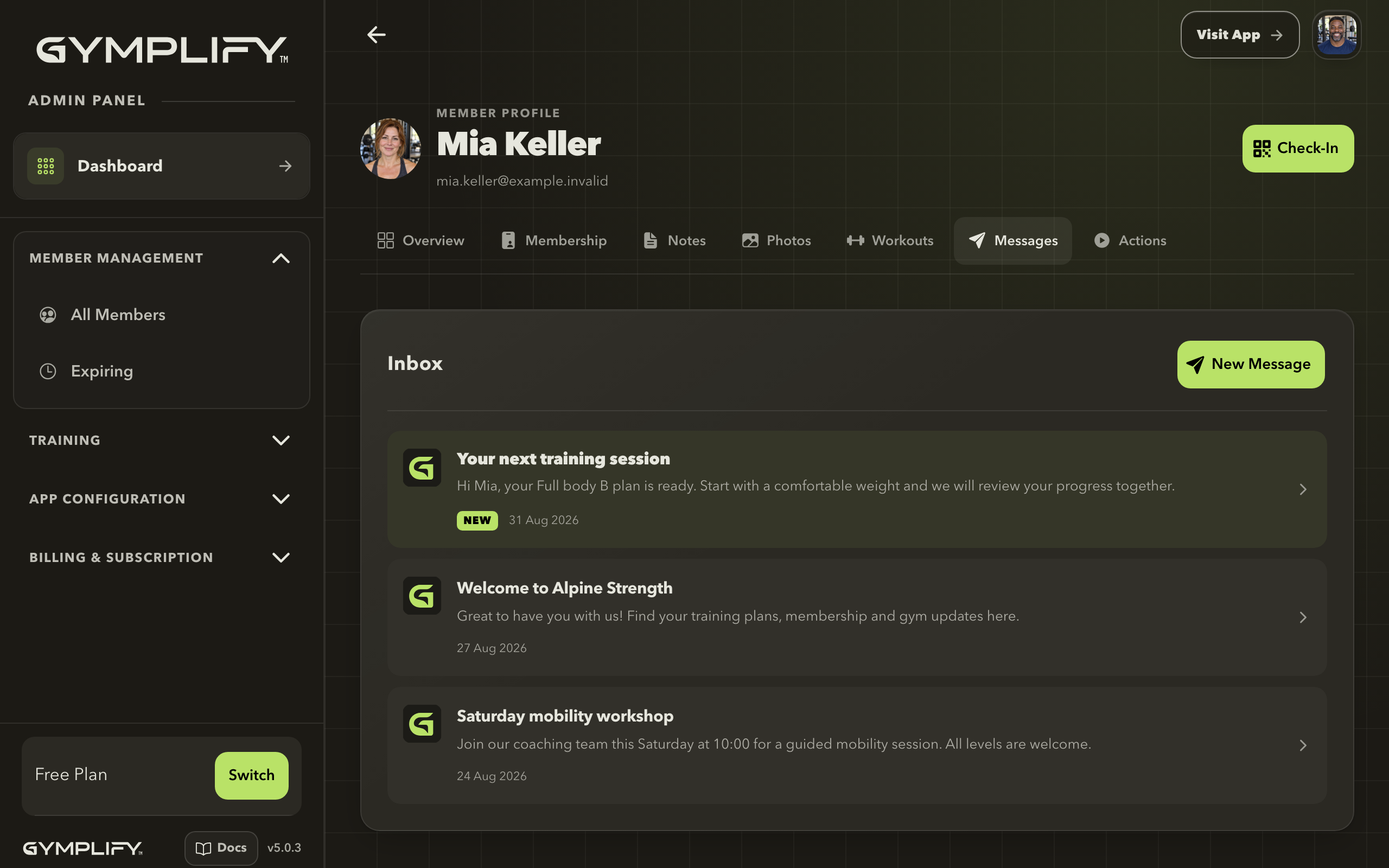
Messages in the member profile
Staff can review the selected member's inbox and create a new message from the same screen.
Keep the message focused on what the member needs to know or do. Put any required action and date near the beginning.
Use a message template
Staff with the relevant configuration access can manage templates under App → Message Templates.
Templates are useful for repeated messages such as welcome information or gym instructions. Review the content for the recipient before sending, especially names, dates, and links.
Share files
Use the message editor's attachment options for supported files, such as a PDF. Give the message enough context that the member knows what the attachment contains.
Check that you have selected the intended member before sending personal documents.
What the member receives
The message appears in the member's gym inbox. Unread messages are indicated in the app.
Do not assume the person has read a message because it was sent. For urgent communication, use the contact method agreed with the member.
The message or inbox is unavailable
Check the selected member, their linked account, and whether the gym has Messaging enabled. A person without a linked account cannot sign in to read an inbox.
Next: Share the member inbox guide.