
Understand occupancy and attendance
For staff who manage gym settings. Members can use the visit-planning guide.
Gymplify uses check-in activity to help you understand attendance. Keep these two views distinct:
| View | What it tells you |
|---|---|
| Current check-ins | How many members are currently recorded as checked in. The configured check-in duration affects this number. |
| Average occupancy by weekday | The usual pattern of activity during the day, based on recorded visits. This is not a live count or a prediction of a particular visit. |
Review a weekday
Open Occupancy in your gym's management section, then choose the weekday you want to review.
Read the hourly pattern alongside your opening hours. Peaks show when the recorded activity is higher; quieter periods can help with planning.
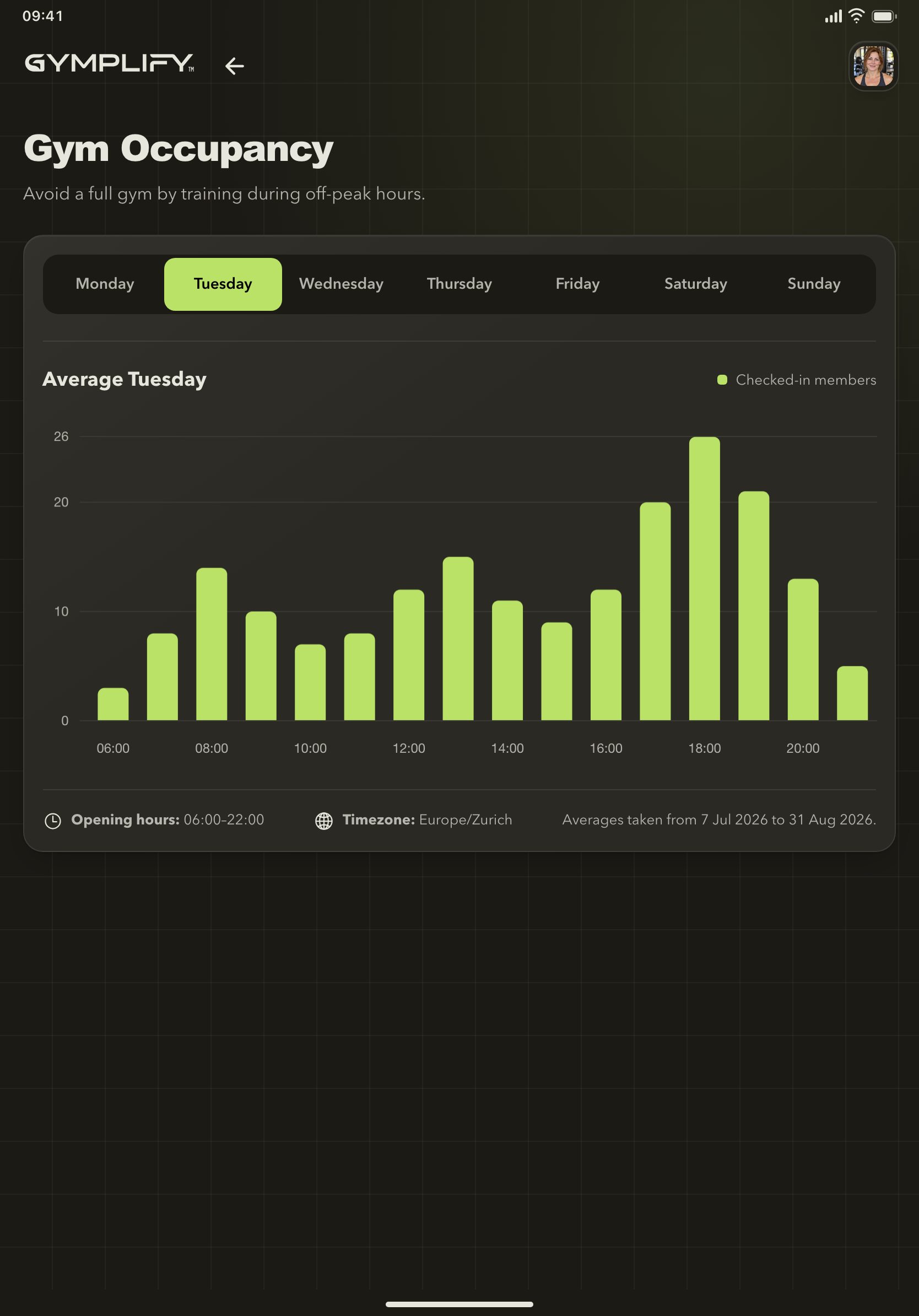
A typical weekday's occupancy
The chart shows an hourly pattern for the selected weekday alongside the gym's opening hours and timezone.
Make the chart available to members
Staff with configuration access can open App Configuration → Modules → Occupancy and enable Allow members to see the average occupancy per weekday.
Members can then use the available occupancy view to help choose a visiting time.
If the chart is empty or unexpected
- Check that the gym has recorded check-ins.
- Confirm the selected weekday and timezone.
- Review the gym's opening hours.
- Check the configured check-in duration when investigating the current checked-in count.
A recently configured gym may not yet have enough recorded activity to show a useful pattern.
Use the numbers in context
Check-in records depend on people being checked in consistently. Use the chart to understand trends alongside your team's knowledge of the gym; it does not reserve space or guarantee how busy the gym will be.
Next: Review check-in procedures or opening hours.