

Set opening hours
For staff who manage gym settings. Members can find visiting information in Plan your visit.
Opening hours tell members when the gym is open. Regular hours and special dates should reflect the schedule your staff actually operates.
Set the regular week
- Open the Admin Panel.
- Under your gym's management section, open Opening Hours.
- Set the opening times for each weekday, including closed days.
- Save the schedule.
Review the gym's timezone when checking dates and times.
Add a special date
Use the special-hours controls for a holiday, one-off closure, or another date that differs from the regular week. Review the affected date after saving.
A special schedule helps prevent members relying on regular hours when the gym is closed.
Show opening hours to members
Staff with configuration access can open App → Modules → Opening Hours and review:
- Show the opening hours page to members.
- Show opening hours on the home screen.
These control the member page and the home-screen widget separately. Save any setting changes, then check the member view.
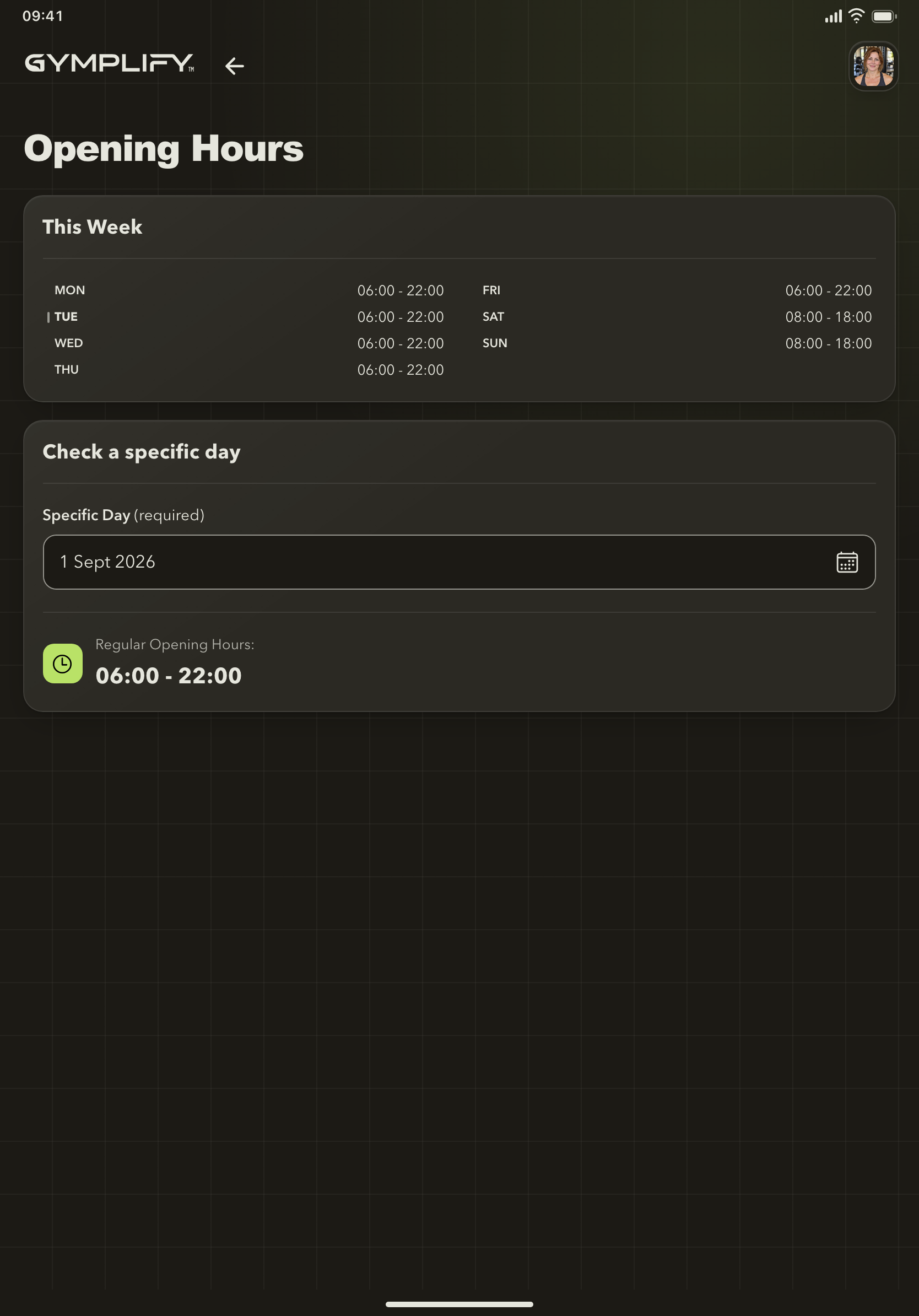
The member opening-hours view
Members can review the weekly schedule and look up a specific day before planning a visit.
Verify the result
Check a normal weekday and a special date. Confirm that the displayed timezone and hours match the intended schedule.
Opening hours also help frame the time range shown in occupancy charts. Review occupancy information.