
Check in members
For staff. Gym members should follow Check in and plan your visit.
Check-ins record attendance at your gym. They also provide the activity used by occupancy reporting.
Check in with a QR code
- Ask the member to open Check-In in their gym app.
- Open the staff QR scanning action, such as Scan QR on the dashboard.
- Scan the member's code.
- Review the result and wait for confirmation.
The Join a gym code is used to connect an account to a gym. The Check-In screen is the member's normal arrival flow.
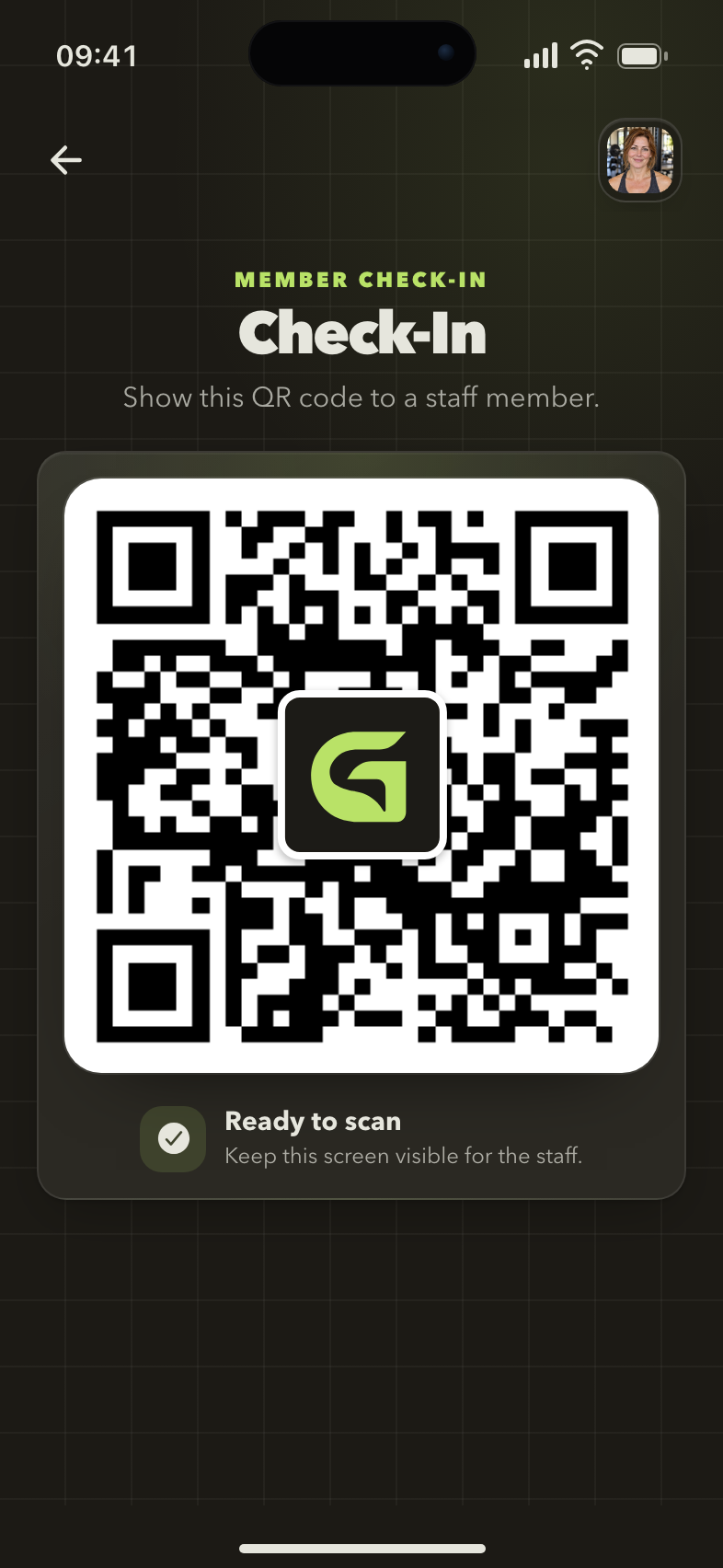
The code a member shows at arrival
Ask the member to keep the Check-In screen visible while staff or the front-desk reader scans it.
Check in manually
Open the member's profile and use Check-In when available. This is useful when the person does not have a phone or uses a profile without a linked account.
Confirm the profile name before recording the visit.
Use a front-desk QR reader
A configured QR reader connected to the front-desk computer can support automated check-in. Keep the intended staff check-in screen active and test the reader with your setup before relying on it for arrivals.
A successful scan is not the same as granting access through a physical door. Only rely on integrations that have been configured and verified for your gym.
Check the check-in duration
Staff with configuration access can open App → Modules → Check-In and review Check-in duration (minutes). This controls how long a member is considered checked in by default.
The current checked-in count reflects recorded check-ins and their duration. It is not a physical headcount.
Review attendance
Use the dashboard and the member's available check-in history to review activity. For weekday patterns, see Occupancy and attendance.
A scan does not work
Check camera permission or the connected reader, confirm that the member has opened the correct gym, and try the code again. If appropriate, use a manual check-in while resolving the scanning issue.
Next: Understand occupancy.