
Configure your gym's app
For staff with configuration access. Configuration affects the gym's members. Start with the features your gym intends to use and check the member view after saving.
Choose the available features
Open Admin Panel → App → Modules.
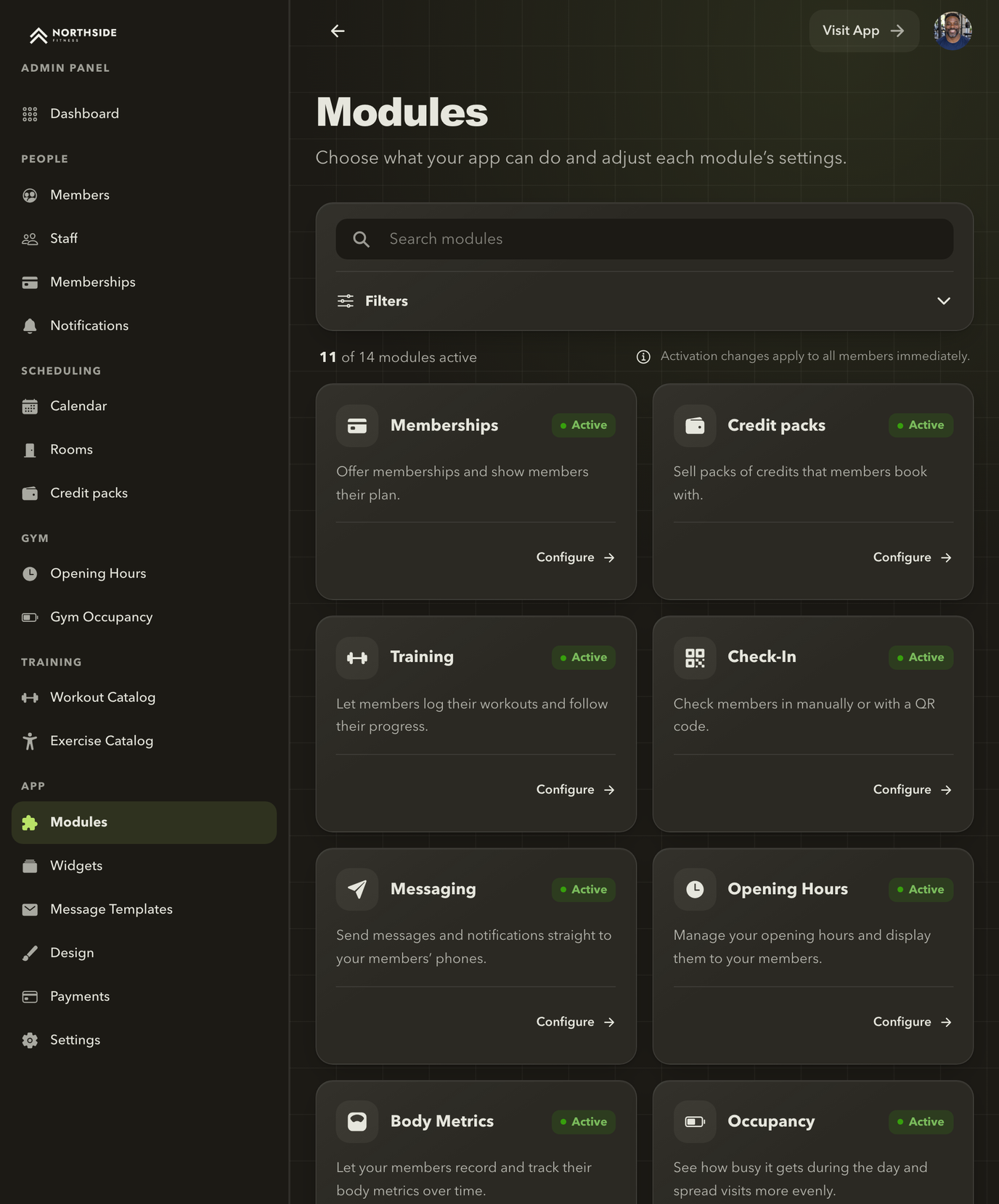
Switch modules on and configure them
The Modules page lists every feature with its status. Open a module to turn it on or off and adjust its settings.
A module adds a capability. Select Turn on on a module's card and confirm with Turn on for all members; the module is available to members right away. Open Configure to change its settings, or Turn off on the module's page. Turning a module off keeps its settings, so you can turn it back on later.
| Area | Modules |
|---|---|
| Members | Memberships (on by default), Check-In, Messaging |
| Training | Training, Body Metrics |
| Scheduling | Events, Rooms, Coaches, Credit packs |
| Your gym | Opening Hours, Occupancy, Shop, Wi-Fi, Website |
Events, Rooms, Coaches, Credit packs, Shop, Website and Wi-Fi are available on every plan. A module your plan does not include shows Not included in your plan. The gym's plan, module configuration, and a person's role or membership can all affect what appears.
Set member access deliberately
Some modules can be hidden or disabled for inactive members. Training can also allow managed workouts independently of the general inactive-member restriction.
Before changing these settings, decide what members should be able to use when their membership is inactive. Save with Save settings and verify the result.
Restore defaults restores the module's default settings. Changes apply to the gym's members immediately.
Arrange the home screen
Use App → Widgets to manage the available home-screen content.
Some modules have their own widget setting. For example, Opening Hours has separate controls for its member page and widget. If a widget is missing, check both the module and its display settings.
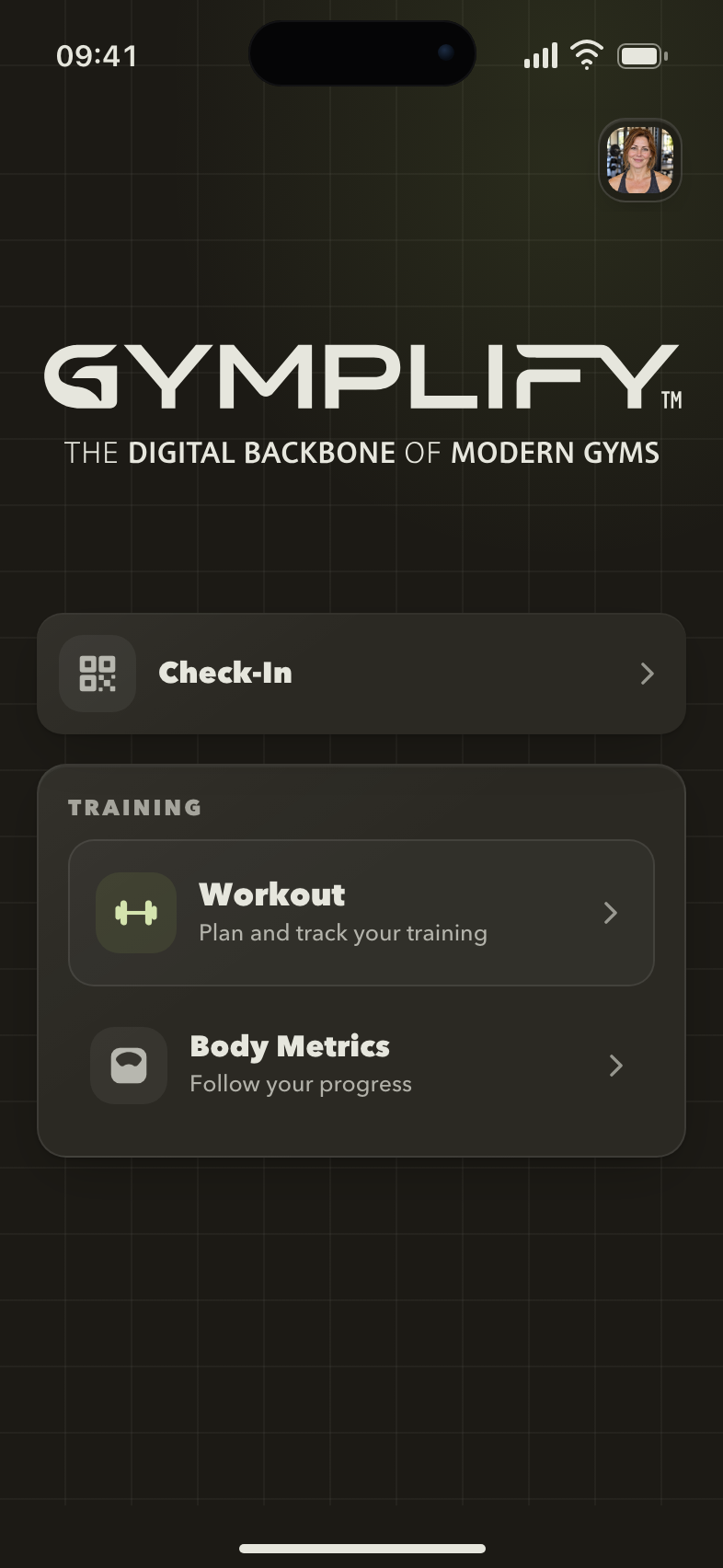
The member home screen
The home screen brings together the gym identity and the services made available to its members. Your configuration determines which content appears.
Review business details and appearance
- Settings: review the gym and app details, and choose your web address.
- Payments: connect your gym's Stripe account for online payments.
- Design: create and try designs in App Design without affecting members. The active design is what your members see; the controls available depend on your plan.
- Message Templates: maintain reusable member communication.
- Agreements: the person responsible for the gym's agreements can review the tools available to them.
A branded theme within Gymplify and a separately published Dedicated App are different options. Compare them.
Check the experience before inviting members
- Confirm the correct gym name and contact details.
- Check regular opening hours and a special date.
- Review the home screen and the modules you enabled.
- Check that member access matches the membership rules you chose.
- Confirm that staff have the access they need.
Use a normal member account to check member access. A staff account can have permissions that other members do not.
Next: Add your first member.