
Events and classes
For staff who manage events. Events lets members book a place in your classes, sessions, courses or workshops in the app. Members follow the booking guide.
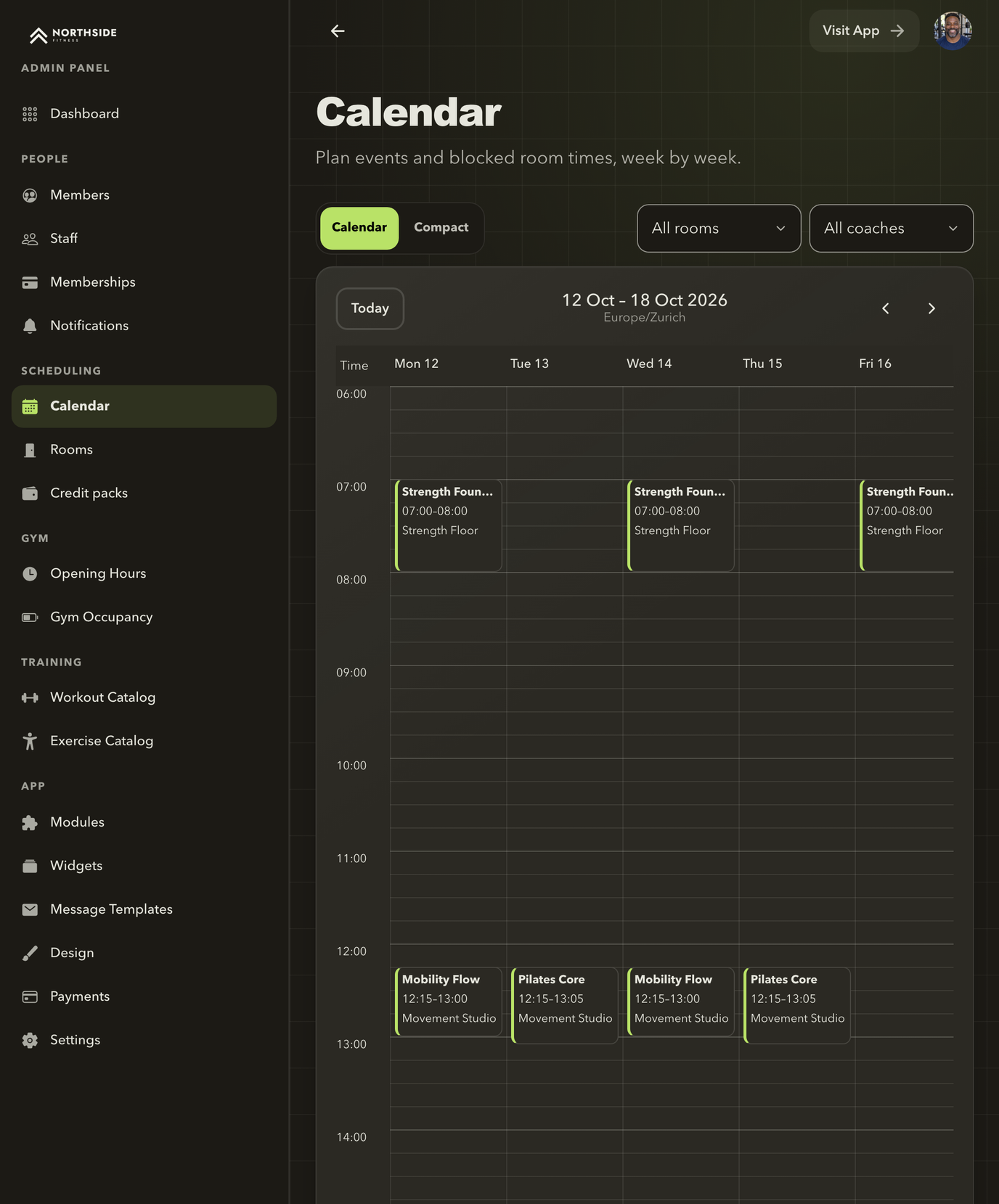
Plan the week in the calendar
The calendar shows every event and blocked room time of the week. Filter by room or coach, or switch to the compact list.
Events is available on every plan. It is off until you turn it on.
Turn on Events
- Open App → Modules and select Turn on on the Events card.
- Answer Who can book your events?
- Active members, unlimited: recommended for gyms. Every membership includes events; you can set limits per membership type later.
- Everyone with an app account, free: for open sessions and community events.
- I'll choose per event: for memberships with weekly limits, credit packs or drop-ins paid at the gym.
- Select Turn on for all members.
Turning on Events also turns on Rooms and Coaches. Every event needs a room and a coach, so add at least one of each before you schedule.
The starting settings are: booking opens 14 days ahead, free cancellation until 12 hours before, and weeks run Monday to Sunday. You can change all of them later.
Choose your event settings
Open App → Modules → Events → Configure. The settings are grouped in tabs:
| Tab | Settings |
|---|---|
| General | Name for events: what members and coaches see, such as Classes, Sessions, Courses or Workshops. The Admin Panel always says Events. Plan ahead up to: how far ahead single events and room blocks can be scheduled, 1 to 6 months. Approve coach schedules. |
| Booking | Who can book: the default for new events. Booking opens: a number of days before the event, or one calendar month before. Bookings close when the event starts. Seats reserved for members. |
| Payment | Pay at the gym (drop-in), Default drop-in price and Pay online when booking. |
| Cancellations | Cancellation rule and Own rules on recurring events. |
| Advanced | Membership weeks, Partial membership weeks and Coach totals count. |
Changed settings apply to new events and new bookings. Existing events and bookings keep the terms they were created with.
Add a single event
- Open Scheduling → Calendar and select + Event.
- Choose Single event.
- On General, enter the Event title and Event description, choose the Room and Coach, and set the Date & time. An event can last up to 12 hours.
- On Images, add a photo if you like.
- On Seats, set Attendee seats. The room's capacity is shown as a guide; leave space for the coach. More seats than the room's capacity are allowed, with a warning.
- On Pricing, choose the payment options.
- Select Save event.
The date must fall within your planning horizon. Only future dates can be edited.
Add a recurring schedule
- Select + Event → Recurring schedule.
- In Schedule, choose Starts on, the Start time and End time.
- Tick the weekdays under Repeats on.
- Set Every (weeks): 1 for every week, 2 for every other week, up to 12.
- Choose when it Ends: Never, On a date (with a Last date) or After a number of dates.
- Complete the room, coach, seats and pricing, then save.
A recurring schedule creates each date for you. Dates appear in the calendar shortly before members can book them, so the calendar only holds the next few weeks. Every date keeps its own bookings.
Open Scheduling → Scheduled events to review your schedules and their status. To change one, select Edit. Use Apply changes from to choose the first date a change affects. To end a schedule, tick Stop creating new dates: dates already in the calendar stay, and you can cancel them one by one.
Block time in a room
Use Block time when a room cannot be used, for example for maintenance, holidays or private use.
- Select + Event → Block time, or open a room and select Block time.
- Choose the room and time. Add a Reason; only staff see it, and members see the room as unavailable.
- Select Block time. A repeated block can create up to 24 dates at once.
To free the room again, open the block in the calendar and select Remove block.
Choose how members pay
Each event has Payment options. New events start with your default from Who can book.
| Option | How it works |
|---|---|
| Open to everyone · free | Any registered member can book. Nothing is counted or paid. It cannot be combined with other options. |
| Included in membership | Members use a visit included in their membership. Choose every membership type that includes events, or Only selected membership types. Bookings count toward the membership's limit. |
| Credit pack | Members use credits. Set the Credit cost per booking. Needs the Credit packs module. |
| Pay at the gym | Reserves one seat; the member pays on arrival. Needs Pay at the gym (drop-in) in the event settings. |
| Pay online | Members pay the drop-in price by card when they book. Needs Pay online when booking and a connected Stripe account. Available where online payments are offered. |
You can combine membership, credit pack, pay at the gym and pay online. Price per booking is shared by pay at the gym and pay online; paying online needs a price above zero.
Members book with the first option they have: a membership visit, then credits, then paying online, then paying at the gym. They can choose another available option before booking.
Pay at the gym does not collect money. Staff collect the payment and record it on the attendee list.
Set the cancellation rule
Under Cancellations, choose a Cancellation rule:
- Flexible: free cancellation until the event starts.
- Standard: free until 12 hours before.
- Strict: free until 24 hours before.
- Custom: set the hours and what happens to later cancellations.
Cancelling before the deadline always returns the visit or credits. For later cancellations and No-shows, choose whether the visit or credits are used or nothing is lost. No-show rules apply when staff mark a member Absent.
Single events use the gym's rule. A recurring schedule can use its own rule when Own rules on recurring events is on.
Members see the rule in the app before they book and before they cancel. For online payments, what members get back is set under Online payments.
Manage attendees
Open an event from the calendar to see its Details, Gym attendees and External attendees.
- Each attendee shows how they booked, such as Paid with membership, Paid with 1 credit, Pays CHF 20 at the gym or Paid CHF 20 online.
- When a member pays at the gym, select Mark as paid on their row. The event's coach can do this too. To correct a mistake, open the row's ⋯ menu and select Undo payment.
- After the event starts, set each attendee to Attended or Absent.
- Staff who manage all events can open the row's ⋯ menu and select Refund online payment to return an online payment to the member's card. The seat stays booked and the payment provider keeps its fee.
Members book their own places in the app. Staff cannot book a registered member onto an event; ask the member to book, or use any seats not reserved for gym members for External attendees who join through the coach. The coach of an event cannot book a seat in it.
Edit or cancel an event
Open the event and select Edit event or Cancel event. For a date that belongs to a recurring schedule, choose This date or This and later dates.
When you cancel:
- the room time is released;
- booked members get an inbox message, and a push notification if they turned it on;
- members always get back what they used: visits and credits return, and online payments are refunded or returned as class credit according to your refund setting. Returned credits keep their original expiry.
Started events can no longer be edited.
Review coach requests
Coaches can propose events from the Coach panel. When Approve coach schedules is on, new events and changes from coaches wait for review; staff who manage all events publish immediately.
- Open Scheduling → Event requests.
- Review the dates, room and coach.
- Select Approve or Reject.
Pending requests do not reserve rooms. If someone else books the room first, approval can fail; ask the coach to choose another time.
Read event reports
Open Scheduling → Event reports, choose a Coach and Month, and select Show totals. The Monthly coach report shows eligible bookings, credits used, attendance still to mark and a breakdown by booking type.
Use Export CSV or Print / Save PDF for your records. Reports count completed events only. Gymplify does not calculate or send coach payouts.
Limits
- Members cannot join a waiting list when an event is full.
- Members cannot book rooms in the app.
- The calendar plans ahead up to 6 months.
Next: Set up rooms or add coach profiles.